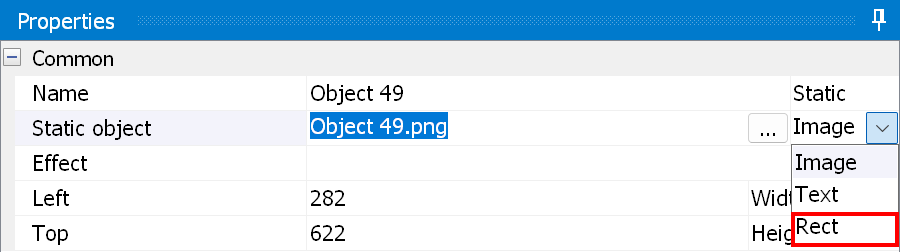
Select the appropriate state of the graphic object and change its type to Rect:
Now you can change the size and color of the state. Click the button as in the picture below:
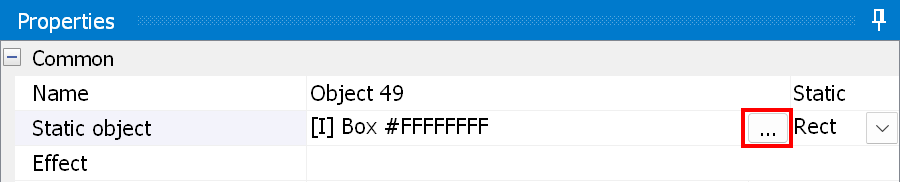
It will open a window:
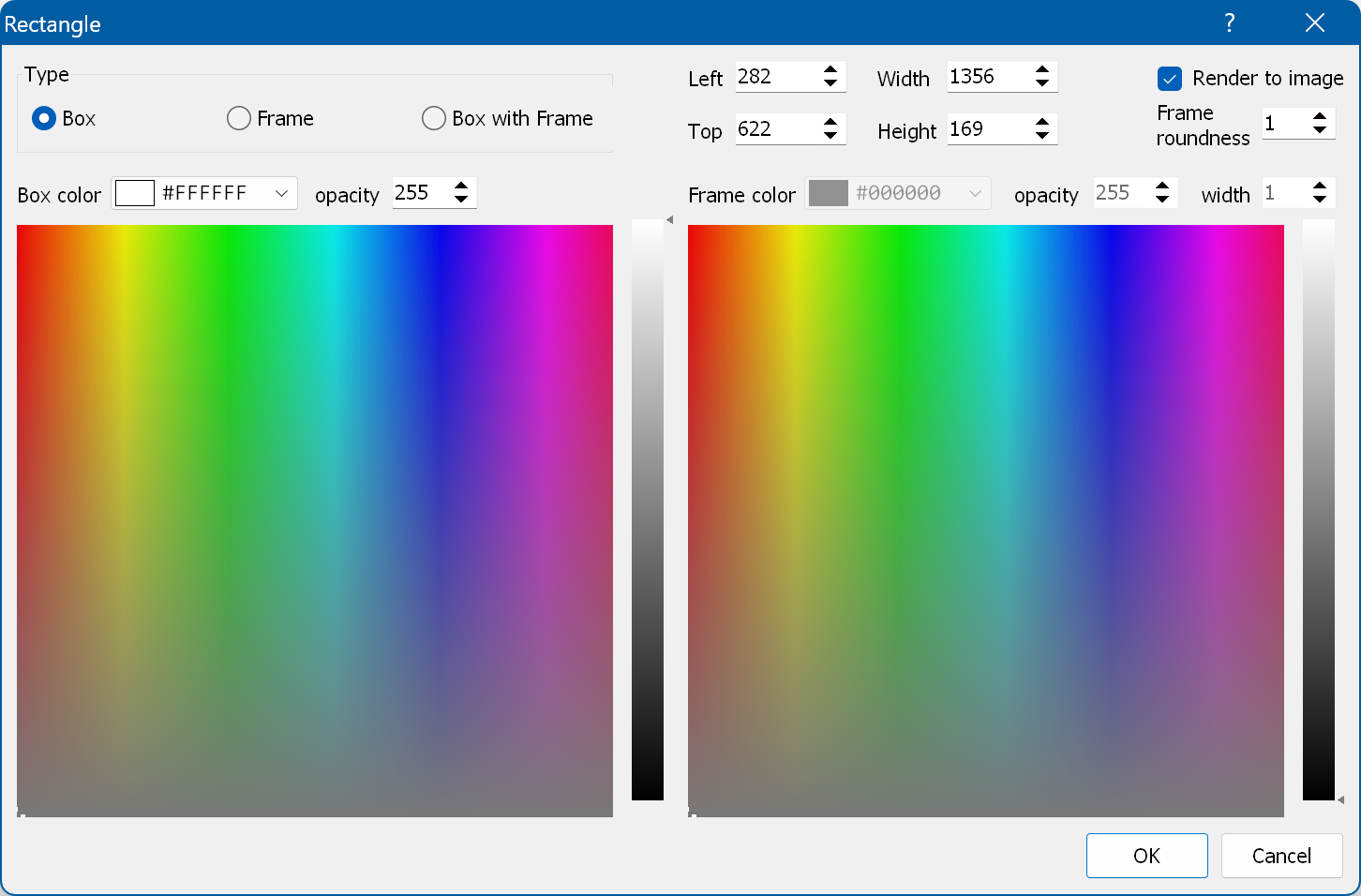
Type - the type of the rectangle: Box (without a frame), Frame (the frame only), or Box with Frame.
Left/Top, Width/Height - the position and size of the rectangle.
Box color and opacity - here you can set the color (by entering the values in the field or by picking it on the panel below) and specify its opacity.
Frame color, opacity and width - here you can set the color, opacity and width of the frame. The frame is drawn inside the rectangle and its corners can be rounded (like an outline).
Render to image - if this is checked, the rectangle is converted into an image during compilation. In this case the Blu-ray player uses an image instead of a rect object, which helps to solve compatibility issues on some players. Otherwise the rectangle is drawn directly, which does not consume image memory.
Frame roundness - lets you specify the roundness of the frame corners used when the frame is rendered into an image.