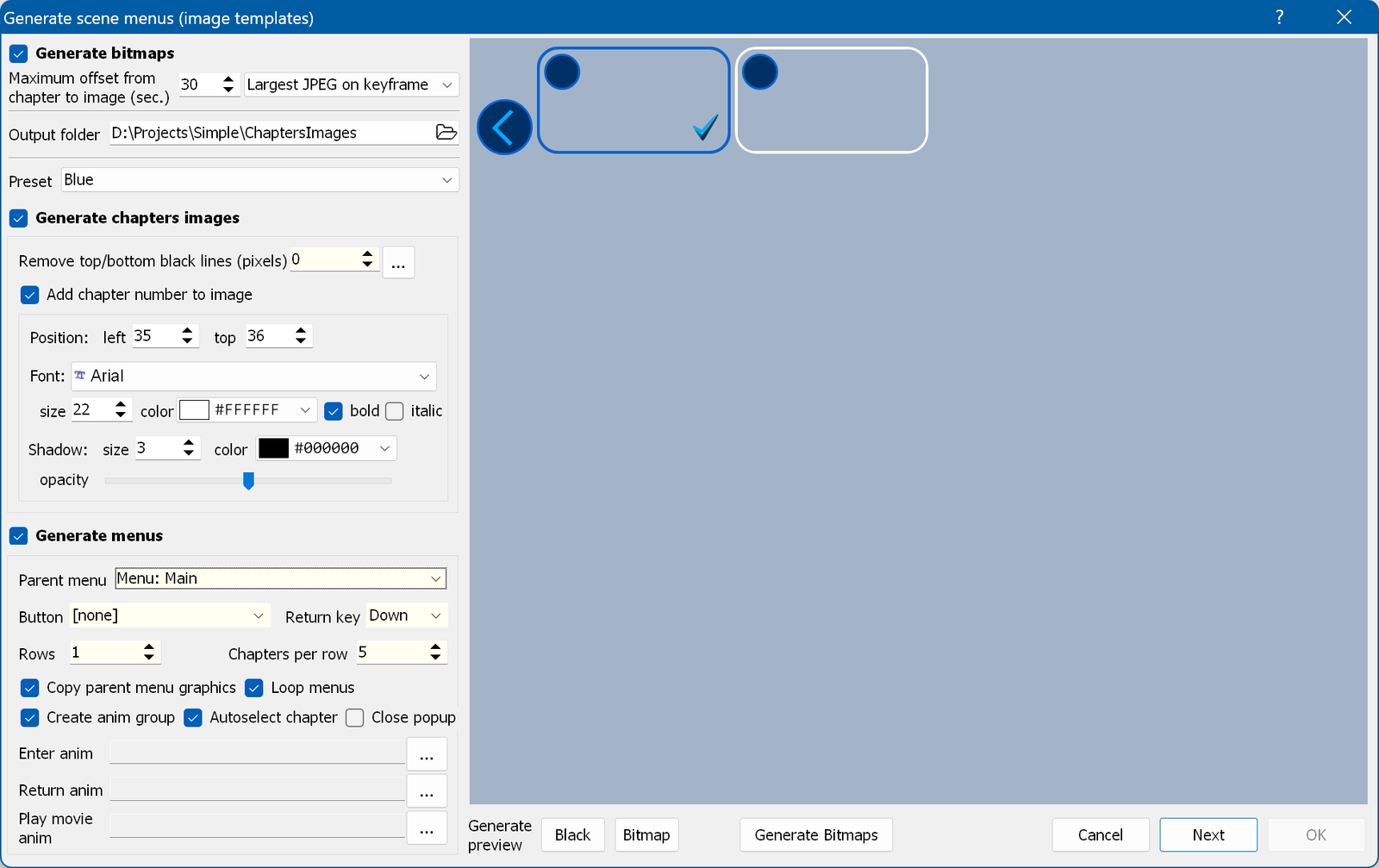
Generate bitmaps - automatic generation of the image files for the chapters. The files are saved in the Bitmaps subfolder of the "Output folder" (see below).
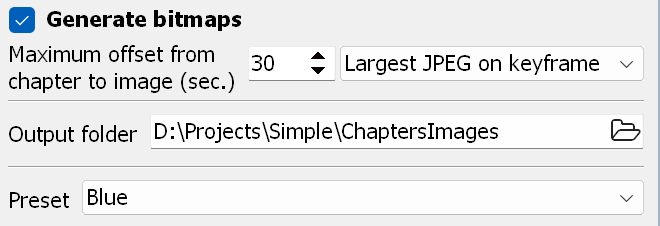
Maximum offset from chapter to image - within the specified time the program searches for the best screenshot, using the specified algorithm:
Output folder - here you can select the output folder where all chapter images (BMP files) are saved and where the menu images are created.
Preset - here you can select a preset for the scene selection menu. Read more about creating a custom preset here.
Generate chapters images - generates the PNG files containing the chapter images for the menu. If you do not want the chapter images to be generated automatically, for example because you want to edit them manually, clear this check box.
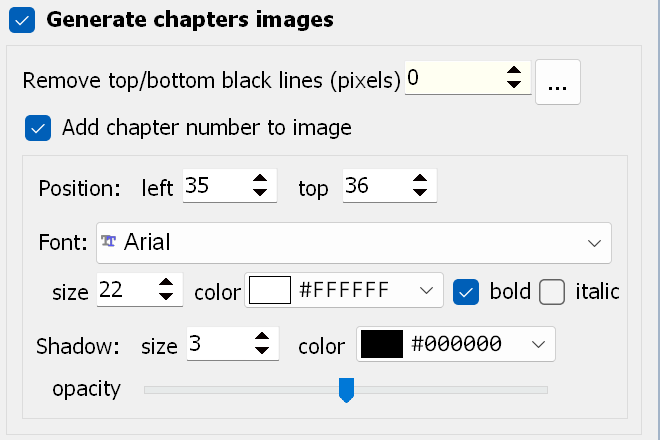
Remove top/bottom black lines - lets you crop the black bars at the top and the bottom of the image.
Add chapter number to image - adds the chapter number to the image.
Position/Color/Font/Shadow - the parameters of the chapter number.
Generate menus - generates the chapter menu.
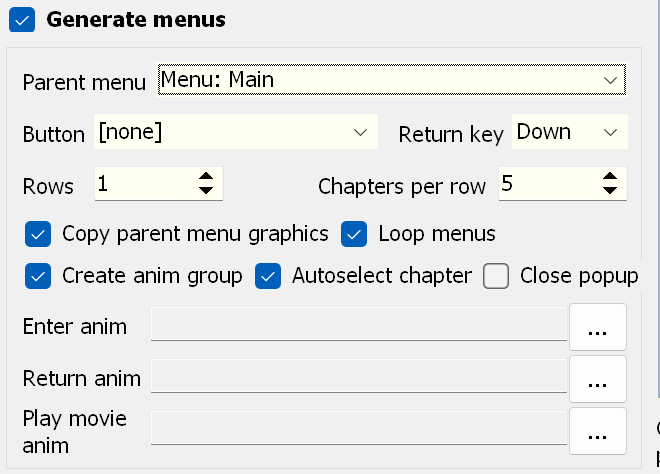
Parent menu / Button - the parent menu and the button of that menu which opens the scene selection menu.
Return key - pressing this key returns you to the parent menu.
Rows - the number of rows in the scene selection menu.
Chapters per row - the number of scenes in each row.
Copy parent menu graphics - copies the graphics from the parent menu to the scene selection menus.
Loop menu - returns to the first screen from the end of the last one.
Create anim group - creates an animation group and adds the scenes to it.
Autoselect chapter - automatically selects the active chapter in a popup scene selection menu. This creates a switch that selects the active scene when the scene menu is entered.
Close popup - closes the popup when a scene is activated. This is required in a popup menu if you specify a fade-out or slide-out animation in the "Play movie anim" field.
Enter anim - the enter animation of the scene selection menu.
Return anim - the animation played when you leave the scene selection menu.
Play movie anim - the animation played when you press OK on a selected scene (jump to the corresponding chapter).
 - generates a preview of the chapter
(over a black screen or a chosen image):
- generates a preview of the chapter
(over a black screen or a chosen image):
 - creates the chapter images.
When you click Next, a window appears in which you can move the group of chapter images on the screen.
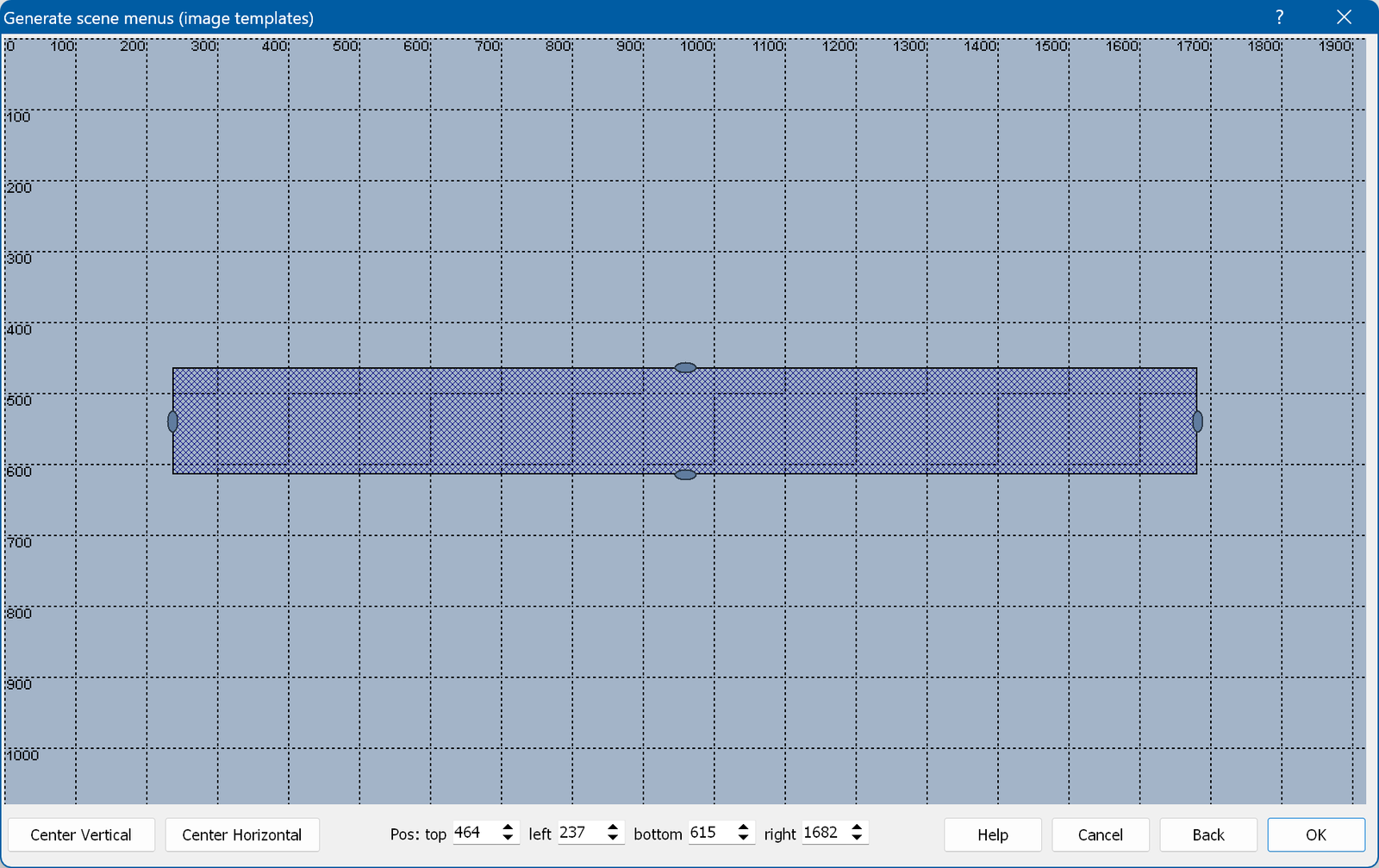
 - align vertically and horizontally
to the center.
- align vertically and horizontally
to the center.
 - the coordinates of the group of
images.
- the coordinates of the group of
images.