Switch
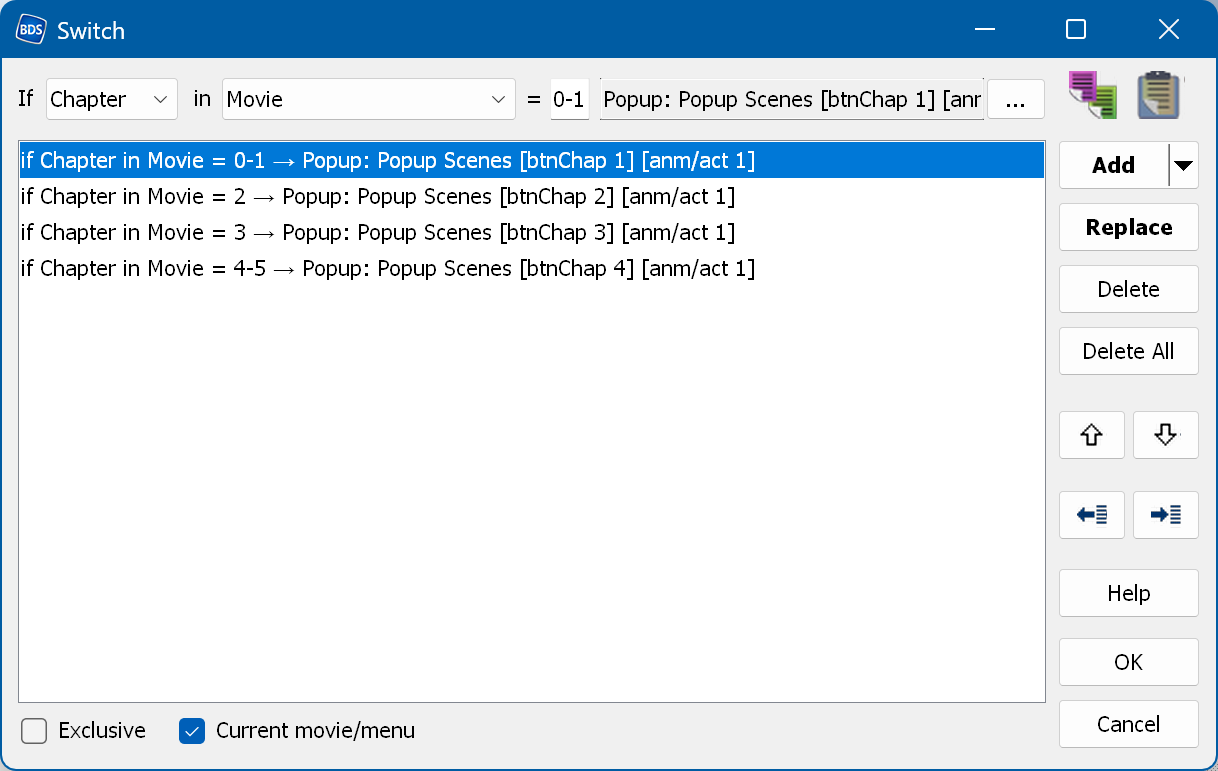
A switch is designed to perform actions depending on the current chapter, the current audio/subtitle track number,
the selected button of a menu or a custom condition.
The audio/subtitle/chapter number (index) can also be a list or a range: "1,2,3" or "2-4"
(without the quotes). The indexes of chapters, audio and subtitle tracks start at 1; for subtitles, 0 means
"off".
Please note that "link points" are not counted here.
Thus, if you have:
Chapter 1 (play mark)
Chapter 2 (link point)
Chapter 3 (play mark)
you have to use the number 2 for chapter 3 here.
 - import a switch from a file.
 - export the switch to a file.
To add a new conditional action, select a condition, enter the index or range for Audio/Subtitle/Chapter (or the
condition for Custom, see below), select the action by clicking the "..."
button and then click the "Add" button.
Add → Add using template - creates several conditions at once, using the current condition and
action as a template. It only applies to the Audio/Subtitles/Chapter conditions and to the Jump MENU → button
action. It increments the number in the condition and selects the next button of the same menu.
To edit an existing conditional action, select it in the list and double-click it.
A middle mouse button click behaves the same way, but additionally starts editing the action
(a double-click in the action field opens the quick action edit window if one is available).
To replace an existing conditional action, use the "Replace" button: double-click the conditional action,
modify the condition or the action and click "Replace".
Conditions can be based on:
- the audio/subtitle stream number (index) of a given movie group (If Audio in Movie = 1 ...);
- the chapter number (index) of a given movie;
- a custom condition (see below);
- the selected button of a given menu (if Selected Menu: Main [Play] ...).
All conditions are evaluated one after another, and whenever a condition is true, its action is performed.
If you need to perform a certain action always, regardless of the condition, use an empty Custom condition.
All actions without conditions at the beginning of the list will always be executed.
The first action with an empty condition at the end of the exclusive switch will be executed only if no other
actions have been executed. Other actions with an empty condition in the exclusive switch will always be executed.
 -
copy the action from the action field to the buffer.
-
copy the action from the action field to the buffer.
 -
paste the action from the buffer into the action field.
-
paste the action from the buffer into the action field.
The same commands are also available in the action popup menu.
The Exclusive check box means that only one action is executed: the first one whose condition
matches. If "Exclusive" is not checked, all actions whose condition matches are executed.
Current movie/menu - the "current movie" part of this option is used when a popup menu is
assigned to more than one movie
(for example when the menu contains the chapters of several movies). If it is checked, the condition "if
Chapter in Movie M1 = ..."
is only evaluated while the movie M1 is playing; it is skipped if the current movie is M2.
The "current menu" part of the option is used for the "Selected button" conditions.
You can use Custom to enter a custom condition. Press Ctrl+Space in the Custom condition field to open
a completion list of the functions below, the user-defined variables and the user functions, narrowed down to
the ones starting with the word you are typing. Inside quotes, Ctrl+Space lists the movies and playlists of the
project instead.
- Available functions are:
- Audio('Movie group name', updateIfCurrent) or Aud('Movie group name',
updateIfCurrent) - returns the current audio track number (index) in the specified movie group. updateIfCurrent - if false - simply returns the value
from memory; if it is true, the function checks whether the current playlist belongs to 'Movie group name'
and updates the value in memory before returning it. If updateIfCurrent is omitted, it behaves as if it were
false;
- Subtitle('Movie group name', updateIfCurrent) or Sub('Movie group name',
updateIfCurrent) - returns the current subtitle track number (index) in the specified movie group, or 0 if the subtitles are off; updateIfCurrent is the same
as above;
- SubtitleTrack('Movie group name', updateIfCurrent) or SubTrack('Movie group
name', updateIfCurrent) - returns the active subtitle track number (index) in the specified movie group, ignoring the on/off state; updateIfCurrent is the same as
above;
- SubtitleIsOn('Movie group name', updateIfCurrent) or SubIsOn('Movie group
name', updateIfCurrent) - returns true if subtitles are on in the specified movie group; updateIfCurrent is the same as above;
- currentAudio - returns the current (active) audio stream number;
- currentSubtitle - returns the current (active) subtitle stream number, or 0 if the subtitles are
off;
- currentSubTrack - returns the current (active) subtitle stream number, ignoring the on/off
state;
- currentSubOn - returns the current (active) subtitle state;
- Chapter('Movie name') or Chap('Movie name') or Scene('Movie
name') - returns the current chapter number (index) in the specified movie;
- isPlaylist('Movie name') - returns true if the specified movie or playlist is playing;
- Playlist - returns the current playlist number (index);
- CanResume('Movie name') - returns true if the specified movie can be resumed (i.e. if its
resume time is greater than 0);
- isPlaying, isPaused, isFastForward, isRewind - return the corresponding state of the player;
- GetGPR(GPRnumber) or GPR(GPRnumber) - returns the value of the specified GPR;
- GetPSR(PSRnumber) or PSR(PSRnumber) - returns the value of the specified PSR;
- 2D or Is2D - returns true if the current screen mode is 2D;
- 3D or Is3D - returns true if the current screen mode is 3D;
- Can3D - returns true if 3D is supported;
- No3D - returns true if 3D is not supported;
- IsSFXon - returns true if the button sound effects (SFX) are turned on;
- IsSFXoff - returns true if the button sound effects (SFX) are turned off;
- IsPIPon - returns true if PIP is on;
- IsPIPoff - returns true if PIP is off;
- IsPIPFSon - returns true if PIP is in full screen mode;
- IsPIPFSoff - returns true if PIP is not in full screen mode;
- PIPvideo - returns the current PIP video number (index);
- PIPaudio - returns the current PIP audio number (index);
- BookmarkCount('Movie name') or Bookmarks('Movie name') - returns the
number of bookmarks in the specified movie;
- isFirstBookmark('Movie name') - returns true if the current bookmark of the specified movie
is the first one (it also returns true if there are no bookmarks);
- isLastBookmark('Movie name') - returns true if the current bookmark of the specified
movie is the last one (it also returns true if there are no bookmarks);
- CurrentBookmark('Movie name') or CurBookmark('Movie name') or
CurBM('Movie name') - returns the index of the current bookmark of the specified movie,
starting at 1 (it returns 0 if there are no bookmarks);
- CanDiscResume - returns true if the disc playback can be resumed;
- HasDataInStorage - returns true if the storage contains data of this disc (resume time, track
numbers, etc.);
- IsMenuOnScreen - returns true if a menu is on the screen;
- The available comparison operators are: =, <, >, != or <> (not equal).
- The available boolean operators are: & (and), | (or).
- Parentheses - (..).
- User-defined parameters - you can declare them in the project
properties and change their values with the Set value command of a
switch/multi-action.
WARNING: if your condition does not meet the requirements described above, you will get an error during
compilation.
Custom condition examples:
- Audio('Movie') > 1 & Sub('Movie') = 2
- Aud('Movie 1') = 1 | Subtitle('Movie 1') <= 2
- 3D
- 3D & Subtitle('Movie 2') = 0
Hotkeys:
- Ctrl+Alt+Up - loads the data of the selected item (conditional action)
- Ctrl+Alt+Right - edits the selected action (the same as a double-click)
- Ctrl+Alt+Down - adds a new item (conditional action) to the list
- Ctrl+Shift+Down - replaces the current item (conditional action) in the list
- Alt+Up / Alt+Down - moves the selected item up/down
- Alt+Del - deletes the selected item
- Ctrl+Enter - OK
- Ctrl+Click on the "Add" button - adds the item at the top
- Ctrl+Space in the custom condition field - opens the completion list of functions and variables (of movies and playlists inside quotes)