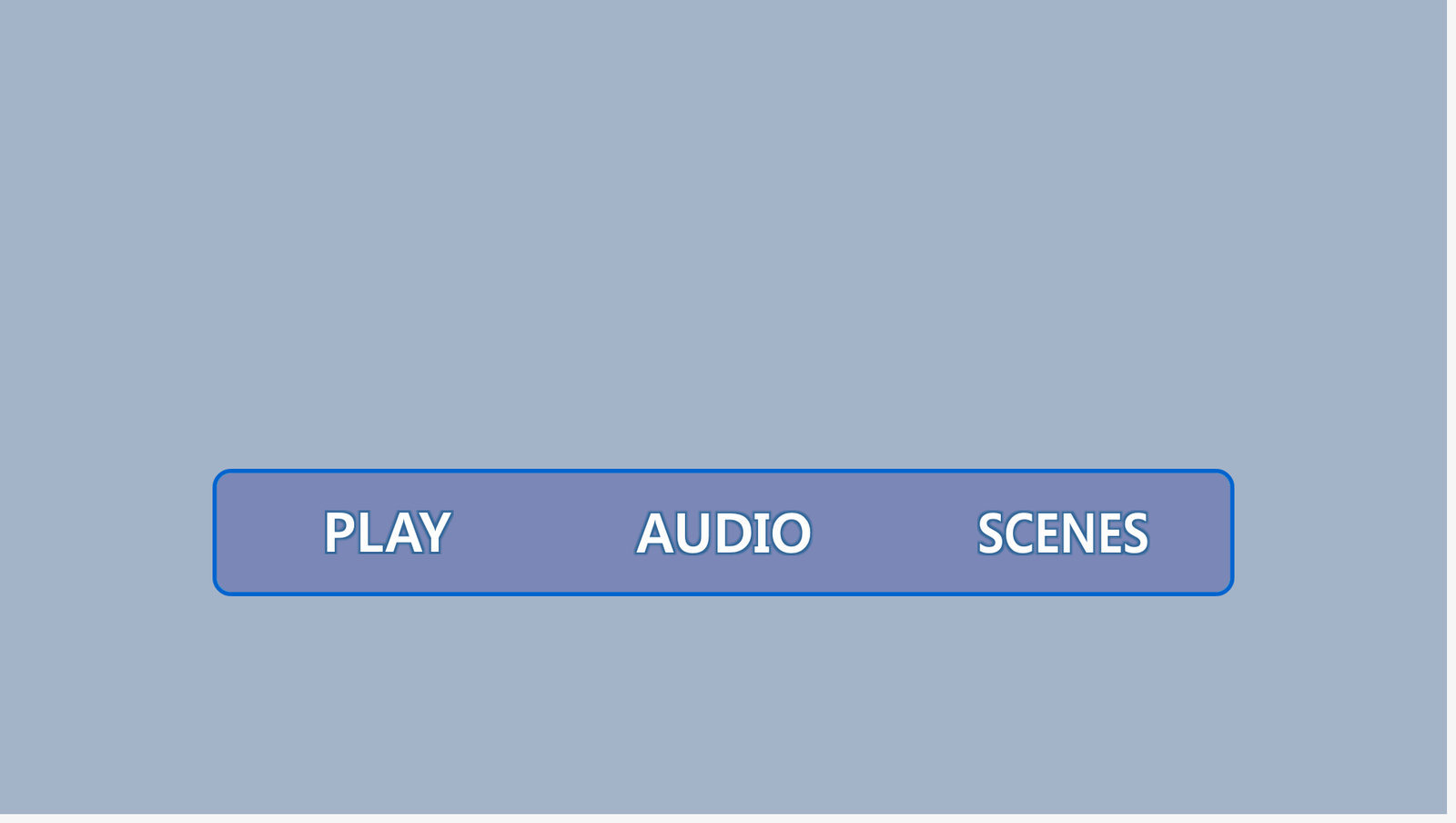
The Designer window shows the contents of the menu: the buttons and images, which you can move or delete here.
You can move the graphics by dragging them with the mouse or by using the keyboard.
For more accurate positioning you can enter the coordinates in the settings of the image.

To prevent objects from being moved accidentally with the mouse, click the lock button on the toolbar
 .
.
To add a button or a picture to the menu, drag a PNG image or a PSD file from Windows Explorer or from the Library window into the Designer window.
If you are importing a button consisting of 2, 3 or 4 states, the files must be named as follows:
If the application recognizes the dragged images as a button, the "Is it a button?" dialog appears. Clicking "Yes" creates a button.
You can delete an object by pressing the Delete key or from the context menu.
Right-clicking an object opens the context menu. The description of this menu can be found here.
Scroll the mouse wheel up/down - zoom in/out.
Ctrl + Scroll mouse wheel up/down - scrolls the window up/down.
Shift + Scroll mouse wheel up/down - scrolls the window left/right.
Ctrl + Shift + Mouse wheel - scrolls the viewport left/right.
Alt + Shift + Mouse wheel - scrolls the viewport up/down.
Alt + Mouse Click - navigates to the target of the button's Enter action (if the action is Jump to menu, Play movie, Select button, etc.).