
At the moment PIP is for advanced users only and is not supported in 3D projects.
To add PIP, select the movie, select the "PIP" row in its properties and click the button:
The PIP window then appears:
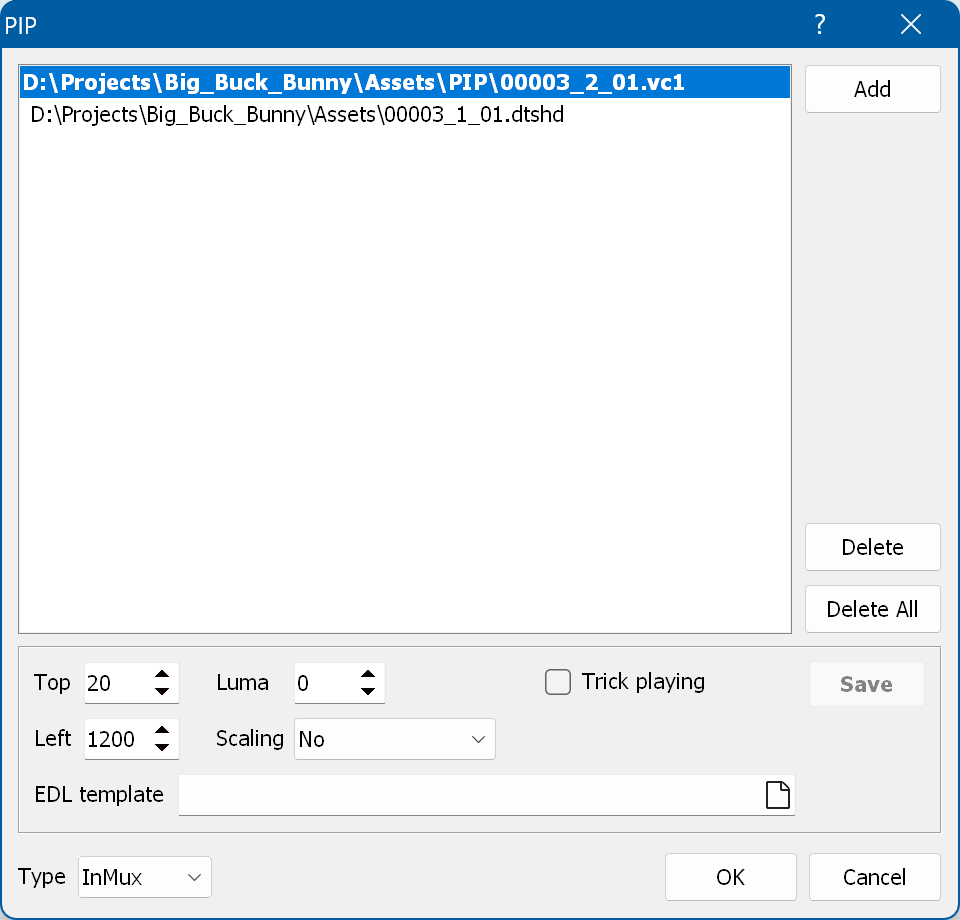
Add - adds PIP video or audio streams. The audio is added to the selected PIP video. You can add a maximum of four PIPs with up to eight audio tracks each.
To change the position, luma, scaling and trick playing of the PIP, select the video track.
Trick playing - shows the PIP during fast forward and rewind.
EDL template - lets you specify several values for the position, luma, scaling and trick playing at different times. If it is specified, the values for the position, luma, scaling and trick playing in this window are ignored.
EDL template format:
    PIP_METADATA luma_key_flag 1
    PIP_METADATA luma_key_upper_limit 16
    PIP_METADATA trick_play_flag 1
    PIP_METADATA timeline_type 1
    timecode_value x_position y_position scaling
    00:00:00:00 150 390 1
    00:00:54:12 150 390 1
    ...
Type - the type of the PIP:

ON - turns the PIP on.
OFF - turns the PIP off.
Full screen ON - switches the PIP to full screen.
Full screen OFF - leaves the PIP full screen mode (restores the original size and position).
Set PIP video - lets you select the PIP video track.
Set PIP audio - lets you select the PIP audio track.
In a SWITCH you can use IsPIPon, IsPIPoff, IsPIPFSon and IsPIPFSoff in custom conditions.
A list of the functions available in Java scripts can be found there as well.
Use the same video format, frame rate and interlaced/progressive mode for the PIP as for the main video. The PIP resolution has to be 720x576 or 720x480.
The CMF builder does not support PIP.