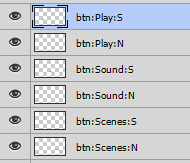
Important note: before importing a PSD, rasterize all layers and crop the image.
Always use layers with merged effects. All PSD files must be 32-bit (8 bits per channel). In the simple (not extended) mode a PSD contains only one menu per file.
To mark a layer as a button, use the following naming scheme:
btn:[button's name]:N - normal state
btn:[button's name]:S - selected state
btn:[button's name]:C - current state
btn:[button's name]:A - activated state
The "btn:" prefix is optional, so you can also use:
[button's name]:N - normal state
[button's name]:S - selected state
[button's name]:C - current state
[button's name]:A - activated state
Instead of a single current state you can use a separate current state for each state (extended current states):
[button's name]:NC (CN, N C, C N) - current for normal state
[button's name]:SC (CS, S C, C S) - current for selected state
[button's name]:AC (CA, A C, C A) - current for activated state
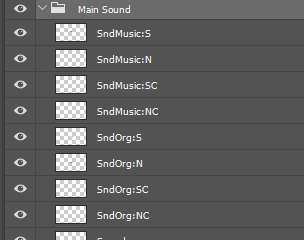
After importing such states you have to run the wizard "Generate "On update current" for extended current states". Do not forget to assign the Set Audio/Subtitle or Jump Chapter actions before running the wizard.
Objects that do not follow this naming convention are imported as simple objects - static images (pictures).
An example of a plain PSD: https://blu-disc.net/download/examples/plain.psd
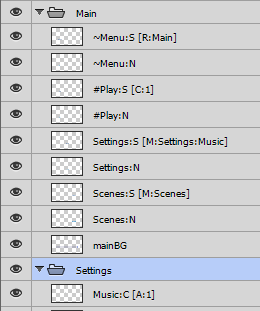
The extended format extends the original native format by adding "folders" (groups). With the extended format you can import more than one menu from a single PSD file and specify the "Enter" action of the buttons.
An example of a PSD in the extended format: https://blu-disc.net/download/examples/extended.psd
To use the extended format, check the "Extended format" box in the PSD import dialog.
In this format all images and buttons have to be placed in groups (folders), one group per menu. Do not create groups within a group.
The button names are the same as in the plain format, but you can add the suffix "[...]" for actions. The "default movie" in these actions is a movie called "Movie" or "Feature", or a playlist called "Playlist". The actions can be:
C:number - plays the default movie from chapter "number". Example: C:1.
C:movie name:number - plays the movie "movie name" from chapter "number". Example: C:Main movie:1.A:number - selects the audio track "number" in the default movie.
A:movie name:number - selects the audio track "number" in the movie "movie name".S:number - selects the subtitle track "number" in the default movie.
S:movie name:number - selects the subtitle track "number" in the movie "movie name".M:menu name - jumps to the menu "menu name". Looks for the menu in the current section. If the current section is a popup and no menu is found, it looks in the main menu section.
M:menu name:button name - jumps to the menu "menu name" and selects button "button name". Looks for the menu in the current section. If the current section is a popup and no menu is found, it looks in the main menu section.R:menu name - jumps to the main menu "menu name".
R:menu name:button name - jumps to the main menu "menu name" and selects button "button name".I:menu name - this menu is ignored (skipped).
STOP:menu name - the import stops here.
You can put two name modifiers (prefixes) in front of a layer name. Using such a modifier in a group name applies it to the whole menu (group).
~ - this item (button state/image/menu) is intended for the popup menu only.
# - this item (button state/image/menu) is intended for the main menu only.
You can define a layer mask that is replaced with the corresponding chapter image. This layer can be a button state or a static image. In either case, your project has to contain a movie, and the PSD has to contain the "Play movie" commands.
If you need the chapter images as separate objects, use the same names as for buttons, but with the ":Mask" or ":M" suffix:
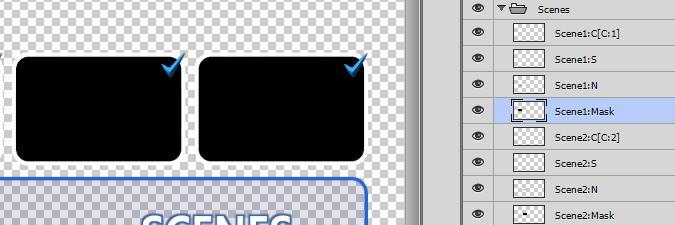
If you need the chapter images as object states, add the ":Mask" or ":M" suffix after the state of the button:
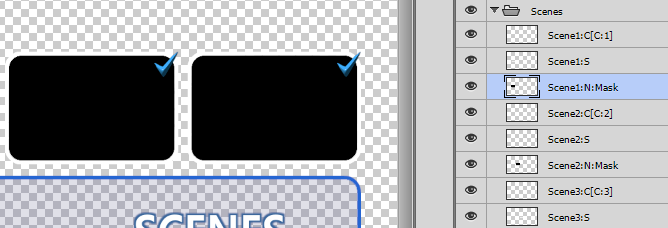
During the import these masks are replaced with the images taken from the ChaptersImages\Bitmaps (or Scenes\Bitmaps) folder. You therefore have to create the screenshots of the scenes in that folder before importing the PSD.
An example of a PSD in the extended format with placeholders for the chapters: https://blu-disc.net/download/examples/menu_extended.psd