Menu simulation
You can use the menu simulation  to see how a menu looks without compiling/muxing the whole project.
There are two simulation engines. The old one does not simulate the actions assigned to
Play/Pause/NextTrack/PrevTrack/FastForward/Rewind and uses the F1 key to simulate the End action. The new one
supports all these buttons and uses the End key to call the End action. You can choose the engine in the program
options → Compile → Simulation.
If a project uses several JARs, the simulation runs one JAR only. You can choose the JAR to
simulate in the drop-down menu.
The simulation has a few limitations:
- There is no video, only the graphics, so you have to call the End action with a hotkey (see below).
- Button sounds do not work.
When Play movie is executed in the simulation window, you see a black screen with information about the
playlist being played. To call up a popup menu, press F5.
The available hotkeys are:
- F1 - Red button (the End action in the old simulation engine);
- F2 - Green button;
- F3 - Yellow button;
- F4 - Blue button;
- F5 - Popup menu button;
- End - the End action of the movie/playlist (new engine only);
- 1..0 - numeric buttons;
- I - executes the Top Menu action (new engine only);
- P - Play button (new engine only);
- U - Pause button (new engine only);
- F - Fast forward button (new engine only);
- R - Rewind button (new engine only);
- < - Previous track button (new engine only);
- > - Next track button (new engine only).
You can use the profiler window to activate any segment (the main menu, for example). The profiler is enabled
in the program options (Show profiler during simulation).
The drop-down menu lets you change the screen size of the simulation window:
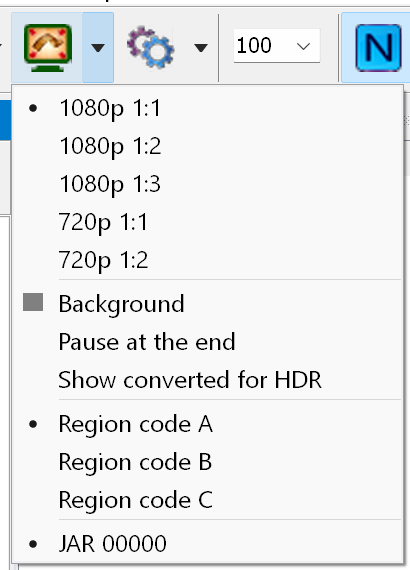 |
- 1080p 1:1 means that a 1080p menu is displayed in a window of 1920x1080
- 1080p 1:2 means that a 1080p menu is displayed in a window of 960x540
- 1080p 1:3 means that a 1080p menu is displayed in a window of 640x360
- 720p 1:1 means that a 720p menu is displayed in a window of 1280x720
- 720p 1:2 means that a 720p menu is displayed in a window of 640x360
Background - the background color of the simulation window. If you have specified a custom background image for
the Designer window, that image is shown instead of the color during
the simulation.
Pause at the end - pauses the simulation before it closes (useful when the simulation fails).
Region A/B/C - sets the region code used for the simulation.
JAR 00000/... - lets you select the JAR to simulate.
|