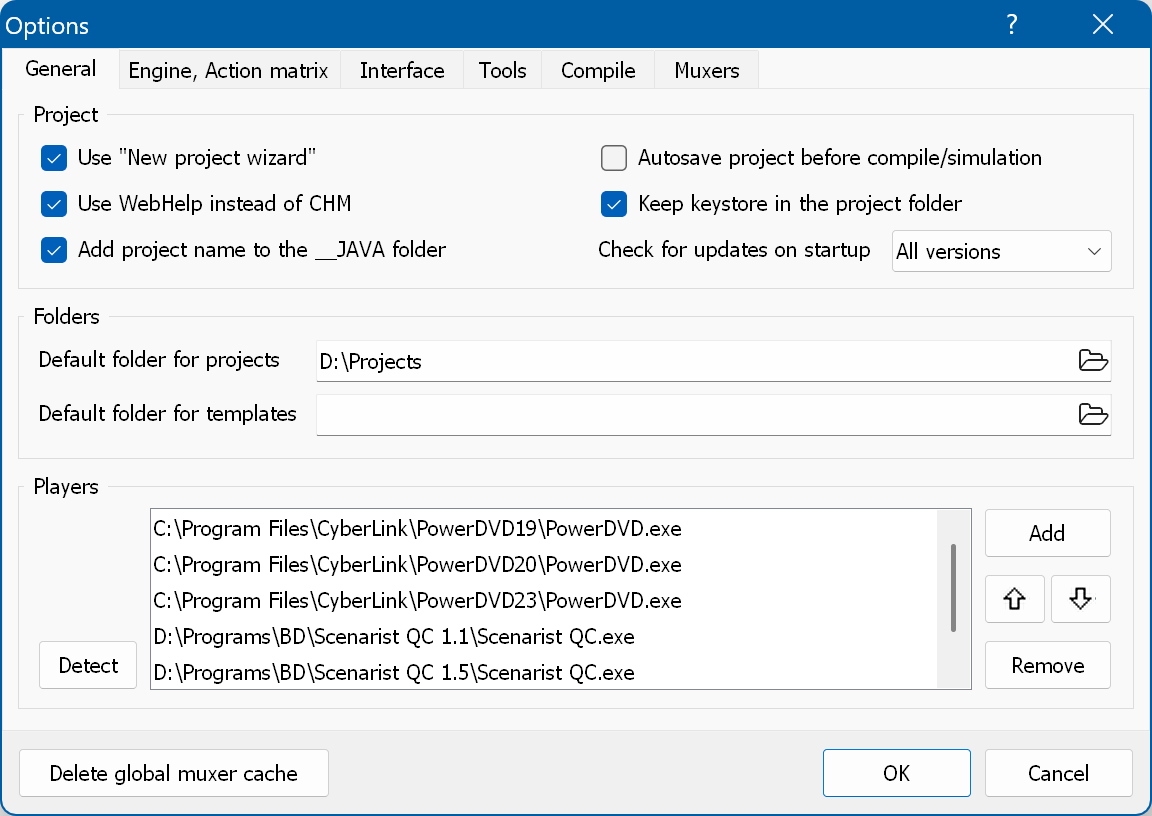
To open the application options, select Tools → Options in the main menu.
The options are stored for the current Windows user and apply to all projects. The settings that are saved with a project are described in the project properties. Press F1 or click the "?" button in the title bar to open the description of the current page.
Delete global muxer cache button at the bottom left - deletes the cache of the internal muxer (%APPDATA%\DVDLogic\Muxer) after confirmation. This button is not shown in editions without the internal muxer.
Use "New project wizard" - opens the new project wizard when you click the "New" button on the toolbar (def: on). The drop-down menu of this button lets you create a project with or without the wizard regardless of this option.
Autosave project before compile/simulation - saves the modified project when you click the mux (compile), export, simulate or recompile JAR buttons (def: off). A new project that has never been saved is always saved first.
Use WebHelp instead of CHM - opens the help in the default web browser (WebHelp, the Help subfolder of the application folder) instead of the CHM help file (def: on). If a help page is not found in the Help folder, the CHM help is opened. The theme of the WebHelp pages is selected on the Interface page.
Keep keystore in the project folder - stores the keystore used for JAR signing in the hidden __KeyStore subfolder of the project folder, and the signing settings in the project itself (def: off). This lets you use different signing settings for different projects. Otherwise the keystore is kept in the KeyStore folder of your Documents folder and the signing settings apply to all projects.
Add project name to the __JAVA folder - names the folder with the generated Java files __JAVA_<project file name> instead of __JAVA (def: off), so that the Java files of several projects in the same folder are kept apart (sometimes required for multi-disc projects).
Check for updates on startup - checks for a new version of the application on startup (def: All versions). "No" disables the check; "Release only" notifies you about release versions only; "All versions" notifies you about beta versions as well. Answering "No to All" in the update notification sets this option to "No".
Default folder for projects - this folder opens when you open a project or save a new project, and it is offered as the project folder in the new project wizard.
Default folder for templates - this folder opens when you use import/export of the templates and when you load or save a project in the new project wizard.
The list of players that appear in the drop-down list of the "Players" button. Clicking a player in that list launches the player and passes the last mux output folder to it. "Add" and "Remove" edit the list, the arrow buttons change the order of the players. "Detect" only detects CyberLink PowerDVD and Scenarist QC. On the first start the list is filled automatically; players whose executable no longer exists are removed from the list.
Allow custom playlist for menu - lets you use playlists in main menus instead of specifying video and audio files (def: off). In this case you handle the menu playlist yourself. See the menu properties for details.
Add new item after selected - if this is enabled, a new menu/popup/movie/playlist in the Project Tree, a new user-defined variable/function in the project properties, a new item of a playlist and new animations in the advanced animation list are added right after the selected item instead of at the end (def: off). To add a variable or function before the selected one, hold the Ctrl key while clicking "Add".
Render text as image - if this option is enabled and the scale of the Designer window is not 100%, text objects are rendered into an image which is then resized, rather than scaling the font size (def: on). This keeps the text layout as it is at 100%.
Locking objects - the state of the Lock
button when a project is opened or created (def: lock when opening project, unlock in new project). "Always locked" and "Always unlocked" set the same state for all projects; "Do not change" keeps the current state and restores the state of the previous session on startup.
Auto-init highlight value - automatically sets the "Highlight" value of a button when you assign actions such as set audio/subtitles or play movie/chapter (def: on). Note that this only works for buttons whose Current state is not empty, and that the highlight is not removed automatically.
Add [close popup] while cloning jump chapter from main to popup - converts a Play MOVIE action into a multi-action with a [close popup] command when you clone a main menu into a popup menu (def: on). The new project wizard has its own check box for this, which starts with this value.
Use internal buffer for copy/paste - copies actions, animations and highlights through the internal buffer instead of the Windows clipboard (def: on). Disable it to copy actions and animations between several instances of the application. See the Action matrix.
Show Enter-action in button hint - shows the action assigned to the "Press Enter" in the hint of a button in the Designer window (def: off).
Use BT.601 to BT.709 conversion in Scenes window - shows HD and UHD video (BT.709 or BT.2020) in the Scenes window and in the preview of the new project wizard with the correct colors (def: off). Without it these frames are decoded as BT.601, and their colors look too intense. Untagged video with 720 lines or more is treated as BT.709. The conversion makes decoding slightly slower.
Expand Switches, Scripts and Advanced animations - displays the entire contents of the switch/script/advanced animation in the Action matrix, rather than showing the [SWITCH]/[Script]/[Advanced] labels (def: off).
Expand Scripts/Switches/Multi-Actions in Switches/Multi-Actions - displays the entire contents of Scripts/Switches/Multi-Actions inside Switches and Multi-Actions, in the matrix as well as in the hints (def: off).
Show hints - which hints the cells of the matrix show (def: always show). "Do not show" - none; "Always show" - the full text of the action or animation; "Only for non-fit items" - only when the text does not fit in the cell.
Autosize items - automatically resizes the cells of the Action Matrix to make sure that the contents are fully visible (def: on menu open and item create only). On the "Buttons" page it resizes vertically and horizontally. For pages "Enter Action/Animation" and "Remote Control" it resizes only vertically. "On every action" also resizes after every change; to apply only vertical adjustment for buttons use "On every action vertical only".
Word-wrap - wraps text in cells (def: off).
Fit in window - fits all columns of the Buttons section in the window when autosize option is applied (def: on).
Maximum column width for autosize - limits the column width when the autosize option is applied (def: 800 pixels at 100% screen scale).
Maximum row height for autosize - limits the row height when the autosize option is applied (def: 400 pixels at 100% screen scale).
Fonts - lets you specify a custom font and size for the Action Matrix (def: off; Consolas, 8). The "Monospace only" check box filters the list down to monospace fonts.
MultiAction/Switch indent - the text used to indent multi-actions and scripts inside switches (def: two spaces). The number next to the field shows its length.
Skin - the skin used by the program (the toolbar button icons), one of the subfolders of the Skins folder in the application folder (def: New style).
Style - the style of the windows. "VS 2012 Dark" is the dark theme.
WebHelp theme - the theme in which the WebHelp pages open (def: follow the style). "Follow the style" opens them dark with the dark style and light otherwise. You can still switch the theme in the help itself. This option does not affect the CHM help.
Style file dialog for dark theme - if this is enabled, the open/save file dialogs are styled as well when the dark style is used; otherwise the standard Windows dialogs are used (def: off).
Use tabbed dock - shows central windows as upper tabs instead of a single document with bottom tabs (def: on).
Floating windows on top - shows floating (not pinned) windows on top of the main window (def: on).
Progress bar always on top - keeps the progress windows (including the compilation progress) on top of other windows (def: on).
Library tree at right - places the folder tree of the Library window on the right (def: off).
Groups in animation lists at left - places the groups and the number of frames on the left in the animation lists (in the matrix and in the edit animation window) (def: off).
Extended icons in Object list - shows a different icon for each button state or static object depending on its type in the object list (def: off). The "<>" icon means an empty object.
Z-order change buttons - lets you specify where the Z-order change buttons are shown: on the main toolbar only, in the object list only, or in both places (def: on the main toolbar only).
Show Matrix button on toolbar - shows the Matrix button on the toolbar (def: on).
Wrap action list at item - the drop-down lists used to select actions (menus, buttons, chapters, etc.) start a new column after this number of items when they are longer (def: 30).
Properties window right column width - the base width of the right column (the suffix) in the properties window (languages, buttons width/height, object types, execution modes) (def: 42).
Log fonts - lets you specify the font and size of the Log window (def: Consolas, 9). The "Monospace only" check box filters the list down to monospace fonts.
Underline clickable object names in log - underlines the object names in the compilation log that you can Ctrl+Click to go to the tree item (def: off).
Fonts for functions in Project properties - the font and size of the user-defined parameter and function lists on the Parameters & Functions page of the project properties, of the scripts on its Scripts sub-page and of the preload script in the JAR settings (def: do not change). "The same as for Log" uses the Log fonts above; "The same as for Matrix" uses the Action matrix fonts, even if the "Fonts" check box there is off.
Click a color to change it.
Selection color - the color used to highlight the selected object in the Designer.
Navigation links - the colors of the left, right, up and down links used to show the navigation between buttons within a menu.
Project tree colors - the eight colors offered by the Color command of the Project Tree context menu to mark tree items. Changing a color here does not change the items that are already marked.
Executable path - here you specify the path to the x264.exe used to encode slideshows and to convert images into video. You can get x264 from videolan.org. This path is shared with SlideShowEncoder; if it is empty, the x264 path set in SlideShowEncoder or the x264.exe in the SlideShowEncoder subfolder of the application folder is used.
Automatically add pair brackets and quotes - automatically adds the closing character when you type "(", "[", "{", "'" or """ in the script, XML and SWITCH condition editors (def: off). If text is selected, typing one of these characters encloses the selection; this always works, even with this setting disabled.
Close Search window after finding - automatically closes the Search window of the script and XML editors once a match has been found (def: off).
Source code beautifier command - the command executed to format (beautify) the source code. It has to accept a file name as its last argument. If you use google-java-format this command can look like: java.exe -jar D:\Programs\google-java-format-1.7-all-deps.jar -r
Please note that this beautifier requires a recent version of Java.External script editor - lets you specify an external code editor (an .exe file). If it is specified, the script edit window shows a button that opens the script in this editor.
Use percentages for subtitles offset for tsMuxer - if enabled, uses percentages for the offset in Subtitles generation window for tsMuxer (just like other muxers) and converts them to pixels at compile time (def: on). Otherwise the offset for tsMuxer is given in pixels.
Memory limit for JVM, mb - lets you set the memory limit of the Java Virtual Machine that compiles the menus and runs the simulation (512 - 1024 MB, def: 1024). The JVM requires unfragmented memory, which Windows is sometimes unable to allocate. In such cases try setting a lower value.
Copy compiled files to the disc output folder after compile - used for the Compile JAR commands (def: ask). If the output path in the project properties contains a muxed disc, the new files are copied there after the recompilation: "No" - never; "Ask" - after confirmation; "Yes" - without asking. In some cases you have to fully re-mux (re-export) the project - see here.
Save generated script in the project folder - saves the generated script, which helps you understand how the menus work and how to write Script (java) actions (def: on). The script is saved in the __SCRIPTS subfolder of the project folder, in a subfolder per JAR (00000, 00001, ...), as four files:
- script.show - the main script body;
- script_Manager.java - the functions used;
- script_Inactivity.java - the Inactivity and EverySecondAction commands;
- script_MediaListener.java - the End actions (onMediaEnd), Start actions (onMediaStart) and chapter commands (onMarkReached).
Show notice/warning summary at the end of compilation - once the compilation has finished successfully, shows a list of all the warnings and notices that occurred during it (def: off).
Keep compilation log - automatically saves the compilation log to the Log subfolder of the project folder, one file per compilation named after its date and time (def: on).
Validate SIG-BD00.RSA after compile - decompiles SIG-BD00.RSA after JAR signing using OpenSSL and compares the data from the sign settings with the data in this file (def: on). If the OpenSSL path is not specified, the validation is skipped with a notice in the log.
OpenSSL path - here you should specify the openssl.exe path. You can get OpenSSL via official website. We recommend to use versions from overbyte.eu (Download OpenSSL Binaries section) or indy.fulgan.com.
Show profiler during simulation - displays a profiler window and debug log during the menu simulation (def: on). You can use the profiler to activate any segment.
Simulation engine version - lets you select the version of the simulation engine (def: new version, normal log). The difference between the old and the new version is described here. The normal log contains information about the executed actions and functions only; the full log also contains information about the system state.
Output simulation log to the main window log - writes the simulation log to the Log window of the application instead of an external window (def: off), so that you can analyze it after the simulation has ended.
Autodetect path - lets you specify the path to the Scenarist® BD folder or enable autodetection. By default autodetection is on. If you use several versions of Scenarist, or if the application cannot find the Scenarist folder, disable autodetection and select the path to the "Scenarist HDMV" (or "Scenarist BD") folder manually. Autodetection looks for Scenarist in the following order:
- Registry key HKEY_LOCAL_MACHINE\SOFTWARE\Sonic\Scenarist BD - MuxServerPath and then CMFServerPath values;
- Registry key HKEY_LOCAL_MACHINE\SOFTWARE\Microsoft\Windows\CurrentVersion\Uninstall\{A008CCA2-5400-45C5-B283-219513232253} - InstallLocation values;
- Registry key HKEY_LOCAL_MACHINE\SOFTWARE\Microsoft\Windows\CurrentVersion\Uninstall\{1387ACD0-D541-45DA-AC63-16F55D963CDB} - InstallLocation values;
- Path %Program Files%\Sonic\Scenarist BD - check that Utilities\MUI Generator exists;
- Path %Program Files%\Sonic\Scenarist HDMV - check that Utilities\MUI Generator exists;
- Path %SystemDrive%\Program Files\Sonic\Scenarist BD - check that Utilities\MUI Generator exists.
- Path %SystemDrive%\Program Files\Sonic\Scenarist HDMV - check that Utilities\MUI Generator exists.
Project version - the version of the Scenarist project generated by the export: 4.x, 5.x or 5.7 and above (def: 5.7 and above). 3D and UHD projects are always exported in 5.x format or newer.
Path - the path to tsMuxeR.exe (required to mux with tsMuxeR and automatic demux). We recommend the latest beta from github.com/justdan96/tsMuxer.
Run in external console window - starts tsMuxeR in its own console window without intercepting its output (def: off, not recommended).
Use fast mode to generate index (if possible) - creates the video index without decoding (def: on). Some videos do not have the keyframe information set in the frame packet; in that case decoding is used anyway. This applies to every video index the application creates, not only to tsMuxeR.
Allow mux in background - runs the internal muxer and tsMuxeR in the background during multiplexing, so that you can keep editing the project while it runs (def: off).
Ignore updates for internal muxer - do not notify about updates of the internal muxer (def: off). It is also enabled when you choose to ignore an update in the update notification. This option is not shown in editions without the internal muxer.
Sort muxer errors - collects the clip warnings of the internal muxer, sorts them and shows them together at the end of the mux log (def: off).