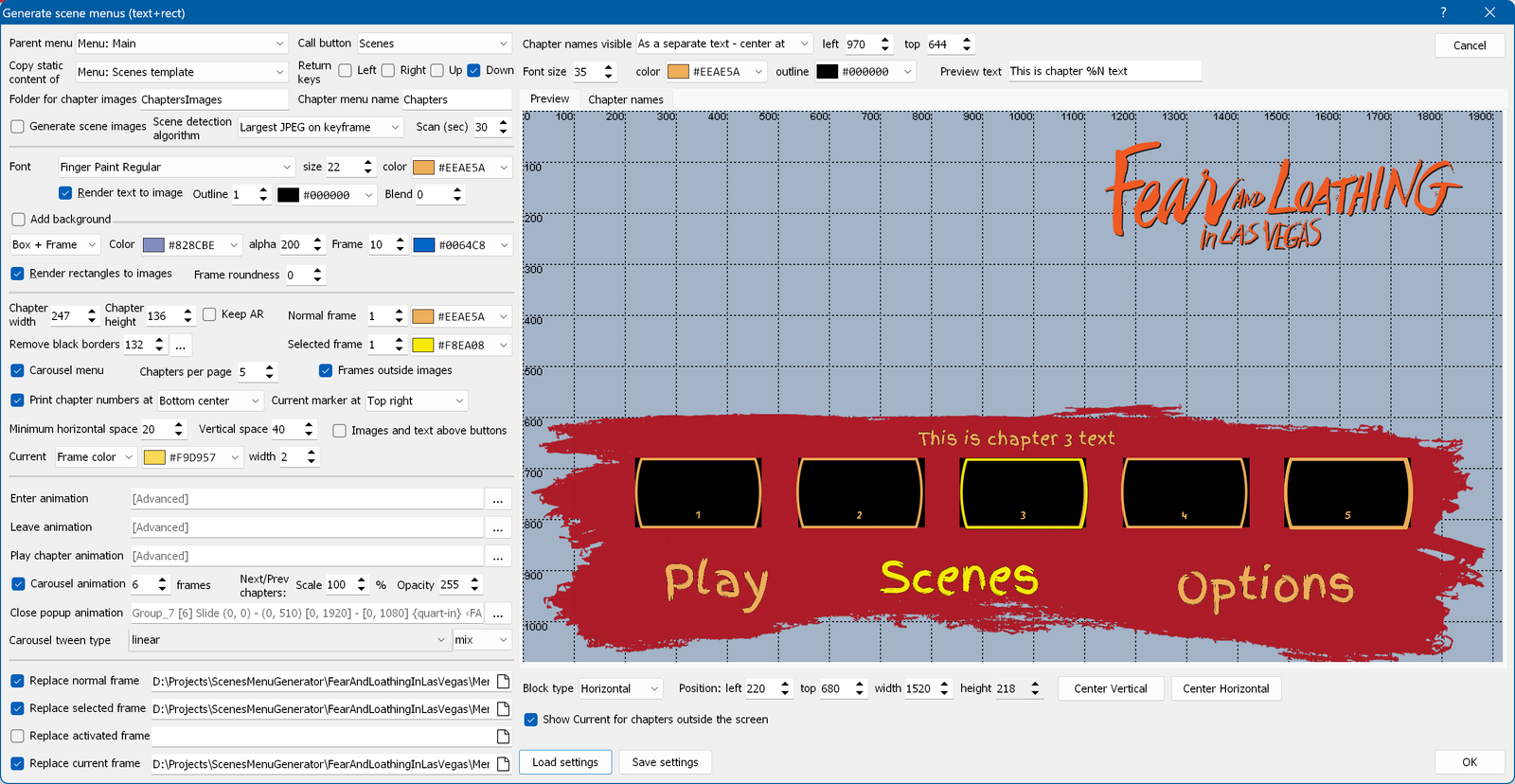
This wizard creates a scene menu containing background graphics from the template menu, static chapter images, static chapter numbers or text, and buttons containing the specified rectangles in the states.
The wizard automatically saves its settings to the file %project_name%.%folder_for_chapter_images%.scnCreator.
Parent menu / Call button - the parent menu and the button of that menu which opens the new scene selection menu.
Copy static content of - the menu whose content is copied to the chapter menu as static content.
Return keys - pressing these keys returns you to the parent menu.
Folder for chapter images - lets you specify the name of the folder (without a path) in which the resized chapter images are stored. The original (not resized) chapter images must be placed in the "Bitmaps" subfolder of that folder.
Chapter menu name - lets you specify the prefix of the menu names.
Generate scene images - starts the scene image generation before creating the menu.
Font - the font used for the chapter numbers (the disc fonts are at the beginning of the list). See the text settings for details.
Add background - adds a background rectangle. See the rect settings for details.
Render rect to images / frame roundness - initializes all created rectangle objects and states with the specified values.
Chapters width / height - the width and height of each chapter.
Keep AR - preserves the aspect ratio by adjusting the second value of the width/height pair. If you disable it, the aspect ratio of the chapter image is still preserved (!), but the part that does not fit is cut off.
Remove black borders - crops the black borders at the top and the bottom of the chapter image. The button opens the visual border selector showing the current image from the scene window.
Normal frame - the width and color of the normal frame of the chapter image.
Selected frame - the width and color of the selected frame of the chapter image.
Carousel menu - creates a carousel menu (a menu that slides when you select the next/previous chapter). Please note that the number of movie chapters used has to be at least two more than the number of "chapters per page".
Chapters per page - the number of chapters visible on each page.
Frames outside images - if this is checked, the frames are placed outside the chapter images; otherwise they are drawn over the images.
Print chapter numbers at - lets you specify where the chapter numbers are placed.
Current marker at - lets you specify where the current marker is placed (if you use a marker instead of the current frame - see below).
Minimum horizontal space - the minimum horizontal space between the chapter images and the background frame.
Vertical space - the vertical space between the chapter images and the background frame.
Images and text above buttons - lets you place the chapter images and numbers below the buttons. This is useful if you use images to replace the button state rectangles.
Current frame - the type, width and color of the current frame of the chapter image.
Enter animation - the enter animation of the scene selection menu.
Leave animation - the animation played when you leave the scene selection menu.
Play chapter animation - the animation played when you press OK on the selected scene (jump to the corresponding chapter).
Carousel animation - the number of frames of the sliding carousel animation. Note: animation groups 1, 2 and 3 are used by the carousel animation. Animation group 1 contains the visible menu items - use it for the open/close animation.
Scale next/prev chapters to - scales the unselected scene images down so that they are smaller than the selected scene. It is designed for use with 3 chapters per page. Please note that the text is not scaled. You also have to enable "Render rectangles to images" and "Carousel menu" and disable "Frames outside images". "Current chapter" is not supported, so you have to enable "Replace current frame" and leave it empty. "Current" has to be set in "Frame color" (the default).
Close popup animation - the animation played when you press the POPUP button on the remote control.
Carousel tween type - described here.
Replace normal / selected / activated / current frame - lets you specify an image that replaces the corresponding state of the buttons.
Chapter names - lets you specify the chapter names, their position and their color.
Block type - horizontal or vertical layout.
Position - lets you specify the upper left corner and the width (the height for a vertical layout) of the chapter block. The height (the width for a vertical layout) is calculated automatically from the chapter height (width) and the vertical (horizontal) space.
Show Current for chapters outside the screen - converts the chapter images that are outside the screen into buttons and moves their Current states to the animation position before the animation (and back afterwards).
Add [close popup] command to [Play Movie] commands in popup menu - adds the [close popup] command to the [Play Movie] commands of the popup menu.