 ,
or select a state of an existing graphic object and change its type to Text:
,
or select a state of an existing graphic object and change its type to Text:There are two ways of using text:
If you choose the second way, please note that different players display fonts differently, and that some players have problems displaying fonts on top of each other. We recommend using fonts only for static objects, or for Normal states with a draw mode that has no "/".
Before using text on the disc (not rendered) you have to:
To create a text object, use the drop-down menu next to the "Add" button
,
or select a state of an existing graphic object and change its type to Text:
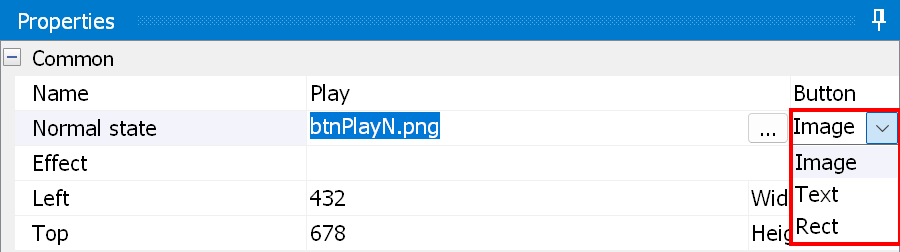
You can now enter the text of the state by clicking the button shown in the picture below:
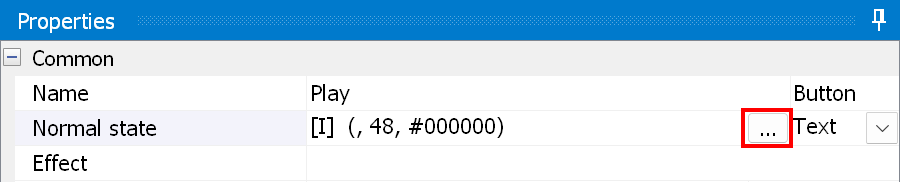
This will open a window:
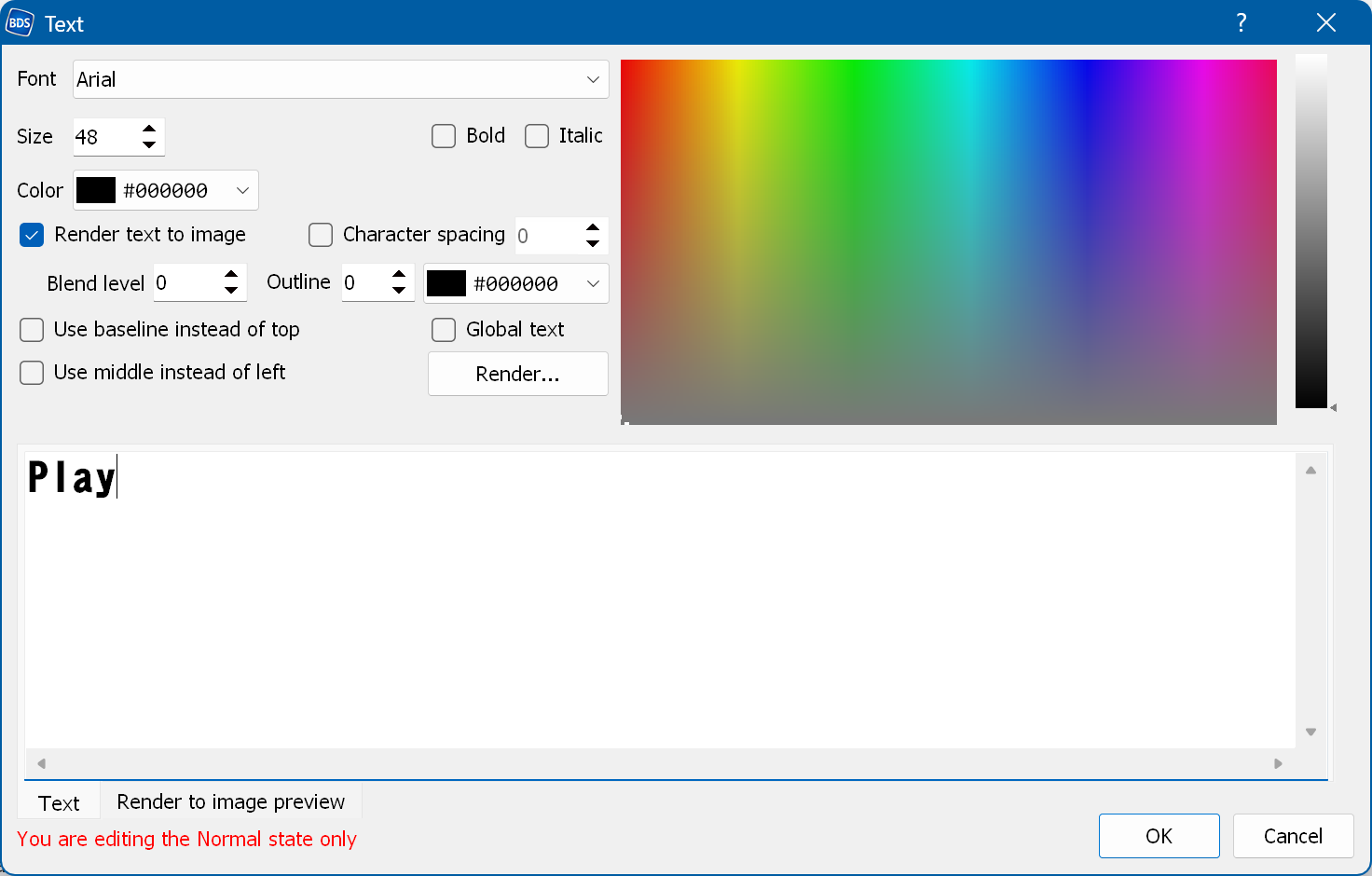
Font - lets you select a font. The disc fonts are at the beginning of the list.
Size - the font size.
Bold, Italic - apply the bold/italic style to the font. By default the styles are taken from the font information.
Color - you can specify a color by entering it in web format or by picking it on the color panel on the right.
Render text to image - tells the application to render this text into an image during compilation. In this case the Blu-ray player uses an image instead of the text. We recommend this for buttons, as it avoids compatibility issues on some players.
Character spacing - renders the text with additional spacing between the characters. If it is unchecked, the DrawText method is used, which optimizes the character layout; if it is checked, the ExtTextOut method is used.
Blend level - the opacity of the font edges. 0 is recommended; 255 means "no opacity".
Outline [size] [color] - adds an outline (a flat shadow) around the text (around each character). You can specify its width and color.
Use baseline instead of top, Use middle instead of left - can be used to position the text when "Render text to image" is disabled. They calculate the center coordinate and use it to position the text, which allows more accurate positioning. The default value can be set here (Menu → Buttons and states).
Global text - makes the text object "global". A global text object is the same in all menus. Such objects have to share the same name, text, font, color and position. This means that you only have to change the text on the fly in the first menu and it changes in all menus. "Render text to image" has to be disabled.
Pre-rendered timer - creates a timer during compilation that uses digits and colons rendered
into images (PNGs) instead of text. For this purpose a submenu with the same name as
this object is created, so before using this feature make sure that no menu has the same name as the
timer object. You can think of this feature as a wizard.
If the same timer appears on several menu pages (same position, color and size), use the same name for all of them.
Timers that differ in position, color or font have to have different names.
To set or change the value (the time), use the manager.updateTimer function. The first
parameter is the name of the submenu (which is created during the first compilation), the second one is the time in
seconds. Example:
manager.updateTimer("F:PM_timer", manager.getMediaTimeInSeconds());
where the timer object is named "timer" and is placed in a popup menu, so that a popup menu named "timer" was created. This code can be placed in the Action Every Second of the menu that contains the timer object (not of the "timer" menu) and called before this menu is entered (in the Enter action, for example).
Render... - renders the text into a PNG.
Text - the field in which you enter the text.
Render to image preview - lets you select a background color and generate a preview to see what the text will look like.