 - adds a
new item (object).
- adds a
new item (object).Select a menu in the Project tree and switch to the Objects window.
- adds a
new item (object).
 - deletes the selected item(s).
An object can be of one of the following types:
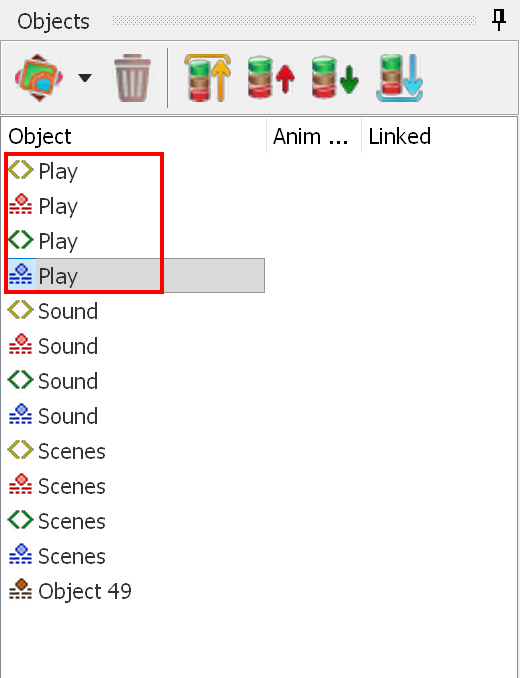
In the picture above, the group representing the button is outlined in red. It has four states: Normal, Current, Selected and Activated.
With the default draw method "Selected, Current, Normal", the other three states appear on the screen in the following order:
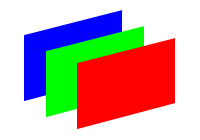
The Activated state is always displayed instead of the Selected state.
NOTE: although a button is shown as 4 items, it is in fact a single object, and you cannot insert any other graphic object between its states. Note also that all Selected and Current states are always displayed together (as one group). The position of these states on the screen is determined by the draw method of the menu. The difference between the way buttons are shown in the Designer and on the screen is described here.
The Current state is used together with the highlight properties. Each highlight condition can be assigned to one button only, i.e. only one button can have "Highlight if [Sound] in Group [Movie] is equal to 1", only one button can have "Highlight if [Sound] in Group [Movie] is equal to 2", and so on.
When you select an object in the list, it is highlighted in the Designer window (provided that this state is turned on):

The yellow square in the bottom right corner lets you resize the object state. Resizing changes: