The scenes (chapters) that take part in the scene menu creation are marked green; the selected one among them is marked yellow.
The scenes (chapters) that are not included in the scene menu creation are marked blue; the selected one among them is marked purple.
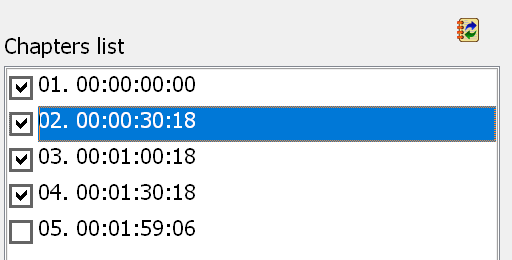
You can include a chapter in the scene menu creation, or exclude it, using the chapter list on the right:
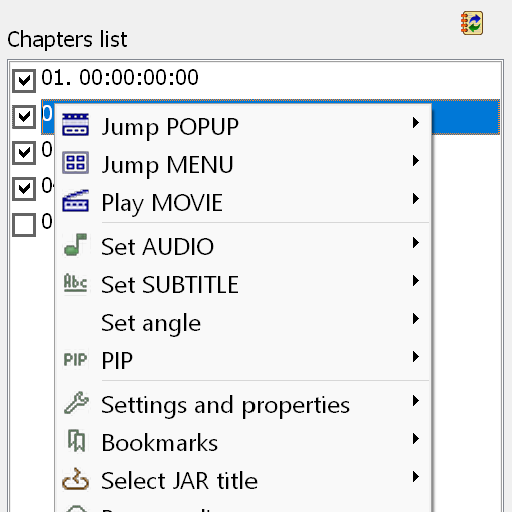
If you open the Scenes window in direct editing mode, right-clicking the chapter list opens a context menu:
Here you can specify the actions executed when the scene (chapter) is reached during playback, as well as the type of the chapter ("Play mark" or "Link point").
If you open the Scenes window in standard mode (not direct editing), right-clicking the chapter list only lets you change the type of the chapter ("Play mark" or "Link point").
A "link point" is not visible to the player as a chapter: it is not used when navigating with Next/Previous chapter and it is not counted as a chapter. Note that "link points" are therefore also invisible to "Switch" and "Highlighting". If you have:
Chapter 1 (play mark)you have to use the number 2 for chapter 3 in Switch/Highlighting.
Chapter 2 (link point)
Chapter 3 (play mark)
A middle mouse button click behaves the same way as a right click, but additionally starts editing the action (it opens the quick action edit window if one is available).
Multiple selection can be used when changing the chapter type, pasting an action or setting a simple action (one without an additional settings window). All other actions, as well as the middle mouse button click, ignore multiple selection.