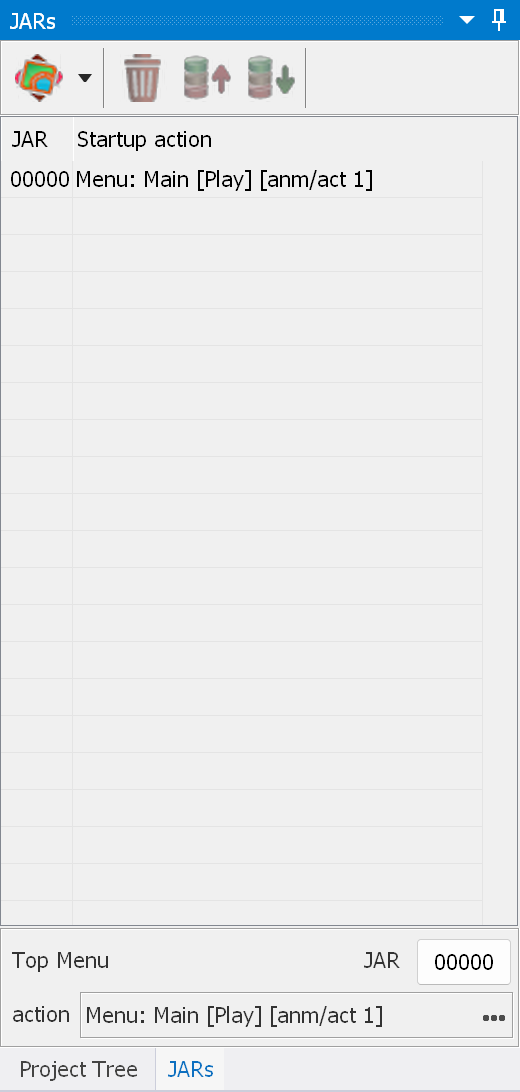
The JARs window lets you change the JAR settings, the startup actions, the First Play and the Top Menu:
To change the startup action of a JAR, right-click in the Action section and select the required action. Double-clicking lets you edit the assigned action quickly, in the same way as in the Action matrix.
The first JAR in the list is the First Play JAR. Read more about using several JARs here.
Start disc from - lets you specify which title is started when the disc is loaded in the Two Titles/Three Titles modes.
On Top Menu - lets you specify which title is started when the Top Menu button is pressed in the Three Titles mode with "Unload JAR on Top Menu call" enabled.
Top Menu - lets you specify the JAR and the action that are executed when the user presses the "Top Menu" button on the remote control.
To change the settings of a JAR, double-click the JAR name (index), or right-click in the Action section and select "JAR settings":

Index - the index of the JAR.
Allow Top Menu call - if this is disabled, the Top Menu is unavailable for this JAR (calling the Top Menu is blocked).
Autocalc key interest table - automatically calculates the Key Interest Table from the buttons used in the Remote control sections of the menus/popups/movies/playlists. If it is disabled, you can specify the "Key Interest Table" manually. See Interactive mode for more details.
Intercept buttons for Java (for the Movie title in the Two Titles/Three Titles modes) - lets you specify which buttons are intercepted by Java. See Interactive mode for more details.
Autocalc key interest table for TM - the same as "Autocalc key interest table" above, but for the Menu title used in the Two Titles/Three Titles modes. If you disable the automatic calculation but do not check any option in the key interest table for TM, the interactive mode is turned off for the TM.
Intercept buttons for Menu title - the same as "Intercept buttons for Java" above, but for the Menu title used in the Two Titles/Three Titles modes.
Unload JAR on Top Menu call - unloads the JAR when the user presses the Top Menu button in the Three Titles mode.
Block Top Menu call for Menu Title - if this is enabled, calling the Top Menu is blocked for the menu title while "Unload JAR on Top Menu call" is enabled.
Do not show loading while jumping to the Top Menu - does not show the loading text and images when the Top Menu button is pressed on the remote control. Applies to the Standard project type only.
Hide loading progress at the end - hides (clears) the loading text and images once the loading is complete. Enabled by default. Disable it if you want a smooth transition from the loading screen to the First Play menu.
Minimum loading stage delay in frames - how many frames each loading stage is shown on the screen.
Don't hide previous images - by default the loading images are replaced at each loading step. This check box disables the hiding, so that at the end of the loading process all 4 images are visible. This is the recommended way to create a loading indicator.
Use features instead of files - lets you specify feature names, separated by commas (,), instead of image files in "Show loading images". To use this, create a menu with the images and then enter these images in the loading image fields using the internal name conversion. For example: F:MM_Loading.img_a,F:MM_Loading.img_b. The coordinates are taken from the menu.
Skip loading if GPR[1]=65535 - lets you control whether the loading text/images are shown. If you check this box and put 65535 into GPR[1] before starting another JAR, no loading text/images are shown. Do not forget to clear this value afterwards.
Show loading text - the text displayed on the screen while the menus are being initialized (during the boot of the disc).
Show loading images - the PNG images displayed on the screen while the menus are being initialized (during the boot of the disc). Do not use huge images - the recommended image size is no more than 640*480. Top/Left are the coordinates of the top left corner of each image. The Center button centers the image on a 1920*1080 screen according to its actual size. To use an animation, specify an anim file instead of the first PNG image.
Preload script - a script executed before the loading process starts (and before the loading text/images are shown).
3D (applies to 3D projects only)
Startup mode - the mode used when the JAR is started.
Use TWOD_MODE instead of ONE_PLANE - uses the real 2D mode instead of a single plane of the 3D mode. By default the one-plane mode is used, which allows the modes to be switched on the fly. If you want to use the real 2D mode, you have to set "Switch 2D/3D mode" in the Project properties to "on media prefetched".
Enable "no 3D hardware" warning - enables the warning "Your hardware does not support stereoscopic 3D mode". You can edit this text in the Project properties.
Read more about 3D here.
UHD (applies to UHD projects only)
Startup mode - the mode used when the JAR is started.
HDR mode graphics gain - lets you set the graphics gain for HDR.