-
a window will pop up:
-
a window will pop up:Click the button on the main menu toolbar
-
a window will pop up:
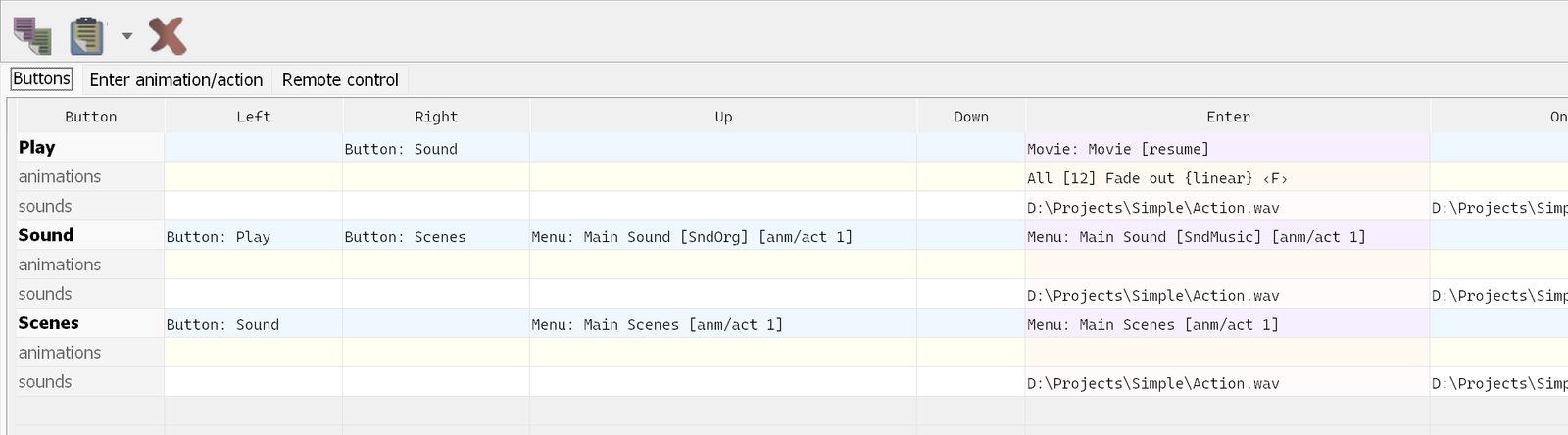
There are three pages:
Action matrix columns:
Right-clicking in the Matrix window opens a popup menu to select an action.
Double-clicking:
Alt + Mouse Click - navigates to the target of the action (if the action is Jump to menu, Play movie, Select button, etc.).
In the Matrix you can copy and paste actions, animations and highlights using the toolbar buttons, the popup menu or the corresponding hotkeys. The text on the toolbar next to the buttons shows the state of the buffer. All copy/paste operations (except for sounds) can use either the clipboard or the internal application buffer, depending on the settings. For sounds, the Windows clipboard is always used.
 - copy action/animation/highlight to the
buffer.
- copy action/animation/highlight to the
buffer.
 - paste action/animation/highlight from the
buffer. If clipboard usage is enabled in the program options and script code
is detected, pasting is allowed: a script window opens and the existing action is converted into a script.
Paste has additional options available from a drop-down menu:
- paste action/animation/highlight from the
buffer. If clipboard usage is enabled in the program options and script code
is detected, pasting is allowed: a script window opens and the existing action is converted into a script.
Paste has additional options available from a drop-down menu:
 - remove action/animation/highlight.
You can use Ctrl + Mouse click to select several cells for Paste and Delete operations.
 - assign chapters to buttons - opens a
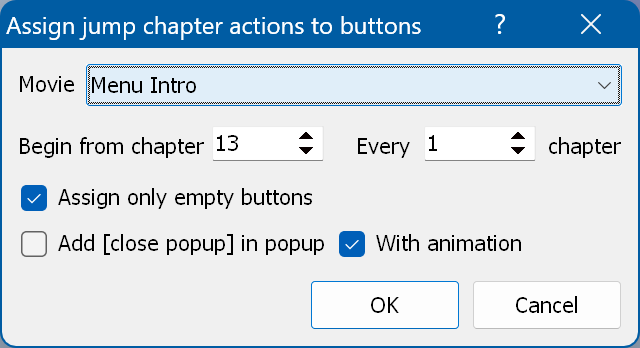
dialog for automatic chapter assignment:
- assign chapters to buttons - opens a
dialog for automatic chapter assignment:
Movie - select the movie whose chapters you want to assign.
Begin from chapter - the first chapter to assign.
Every ... chapter - assign every Nth chapter.
Assign only empty buttons - do not assign the chapter if the ENTER action is not empty.
Add [close popup] in popup - adds a multi-action containing the Play MOVIE and [close popup] commands instead of a single Play MOVIE.
Ctrl+C - copy to buffer
Ctrl+V - paste from buffer
Ctrl+Alt+V - paste from buffer and change (see above)
Shift+Ctrl+A - paste into the existing action, adding after it
Shift+Ctrl+B - paste into the existing action, adding before it
Delete - delete the selected cells
Enter - edit the action/animation
Ctrl Left/Right - previous/next matrix page