Toolbar

 - creates
a new project and opens the New project wizard. If you do not want to use the wizard,
click the Cancel button in the bottom left corner of the wizard. You can also stop the wizard from starting at all in the
program options. Clicking the arrow opens a menu of options:
- creates
a new project and opens the New project wizard. If you do not want to use the wizard,
click the Cancel button in the bottom left corner of the wizard. You can also stop the wizard from starting at all in the
program options. Clicking the arrow opens a menu of options:
- New empty project - creates a new project, does not start the Wizard.
- Open Wizard - creates a new project and runs the Wizard.
- Load Wizard project - the same as above, but it first opens a file dialog for loading a wizard project.
 - opens
an existing project. Clicking the arrow opens the list of recently opened projects.
- opens
an existing project. Clicking the arrow opens the list of recently opened projects. - saves
the current project. Clicking the arrow opens a menu of options:
- saves
the current project. Clicking the arrow opens a menu of options:
- Save - saves the current project.
- Save as... - saves the current project under a new name.
- Save complete project as... - saves the whole project, including all PNG images and button sounds, into a
new folder, preserving the folder structure.
 -
muxes the project with the built-in muxer (MX, MX Pro and UHD versions only).
Clicking the arrow opens the Select target menu (Internal muxer, Export, tsMuxeR).
-
muxes the project with the built-in muxer (MX, MX Pro and UHD versions only).
Clicking the arrow opens the Select target menu (Internal muxer, Export, tsMuxeR). -
exports the project to Scenarist®. Clicking the arrow opens the
Select target menu (Internal muxer, Export, tsMuxeR).
-
exports the project to Scenarist®. Clicking the arrow opens the
Select target menu (Internal muxer, Export, tsMuxeR). -
muxes the project with tsMuxeR. Clicking the arrow opens the
Select target menu (Internal muxer, Export, tsMuxeR).
-
muxes the project with tsMuxeR. Clicking the arrow opens the
Select target menu (Internal muxer, Export, tsMuxeR). -
recompiles the JAR only (it also recompiles sound.bdmv). Clicking the arrow opens a menu of options:
-
recompiles the JAR only (it also recompiles sound.bdmv). Clicking the arrow opens a menu of options:
- Compile JAR - compiles the JAR (the default action).
- Compile JAR with memory debug info - compiles the JAR file and adds information about the memory usage,
which you can see with a software player that has a debug log.
- Compile JAR with full debug info - compiles the JAR file and adds full debug information, which you can see
with a software player that has a debug log.
 - starts
the menu simulation. Clicking the arrow opens the simulation settings menu.
- starts
the menu simulation. Clicking the arrow opens the simulation settings menu. - opens the
Project properties. Clicking the arrow opens a menu of options:
- opens the
Project properties. Clicking the arrow opens a menu of options:
 -
decreases or increases the zoom of the Designer window.
-
decreases or increases the zoom of the Designer window. -
shows or hides the button states. See Graphic objects for details.
-
shows or hides the button states. See Graphic objects for details. -
undoes an action (menu objects only).
-
undoes an action (menu objects only). -
moves the selected item in the Z-order to the top / up by one position / down by one position / to the bottom
(respectively). It applies to the objects of a menu (buttons and images) only.
-
moves the selected item in the Z-order to the top / up by one position / down by one position / to the bottom
(respectively). It applies to the objects of a menu (buttons and images) only. -
while this button is pressed, all states of a button (Normal, Selected, Activated and Current) are moved together;
when it is released, each button state can be moved separately.
-
while this button is pressed, all states of a button (Normal, Selected, Activated and Current) are moved together;
when it is released, each button state can be moved separately. -
locks the objects so that they cannot be moved accidentally with the mouse.
-
locks the objects so that they cannot be moved accidentally with the mouse. -
shows/hides the button selection rectangle.
-
shows/hides the button selection rectangle. -
shows the navigation links, i.e. the navigation between the buttons of the menu.
-
shows the navigation links, i.e. the navigation between the buttons of the menu. -
moves the selected objects/states by relative coordinates.
-
moves the selected objects/states by relative coordinates. -
auto-assignment and wizards:
-
auto-assignment and wizards:
 - opens the
Action matrix window.
- opens the
Action matrix window. - sets a
background image for the Designer window.
- sets a
background image for the Designer window. - shows the
drop-down list of the players you added. Clicking a player in the "Players" drop-down list launches that player
and passes the mux output folder to it. You can change the list of players in the settings (Tools → Options).
- shows the
drop-down list of the players you added. Clicking a player in the "Players" drop-down list launches that player
and passes the mux output folder to it. You can change the list of players in the settings (Tools → Options). - lets you move
the viewport of the Designer window in order to work with objects that are outside the screen.
You can also use Ctrl+Shift+Mouse wheel to move left/right and Alt+Shift+Mouse wheel to move up/down.
- lets you move
the viewport of the Designer window in order to work with objects that are outside the screen.
You can also use Ctrl+Shift+Mouse wheel to move left/right and Alt+Shift+Mouse wheel to move up/down.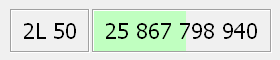 - shows the
approximate disc size (the size of all assets + 6%).
- shows the
approximate disc size (the size of all assets + 6%).
- 1L 25 - single layer, 25 GB (23.3 GiB - 25,025,314,816 bytes)
- 2L 50 - dual layer, 50 GB (46.6 GiB - 50,050,629,632 bytes)
- 2L 66 - dual layer, 66 GB (62.2 GiB - 66,735,570,944 bytes)
- 3L 100 - triple layer, 100 GB (93.2 GiB - 100,103,356,416 bytes)
You can switch between the numbers of layers by clicking the 1L 25 (2L 50) button.
The colors mean: green - there is enough space,
yellow - the space may not be enough, red - not enough
space.